
CybertronIT Blog
Cybertron Blog
Cybertron has been serving the Wichita area since 1997, providing IT Support such as technical helpdesk support, computer support, and consulting to small and medium-sized businesses.
How to Move Your Cursor Without a Mouse

Your mouse dies in the middle of something important and there is no spare in the drawer. It happens. Windows has a built-in fix called Mouse Keys, an accessibility feature that lets you move the cursor with your numeric keypad. It is worth knowing before you need it. Here is how it works.
Turning Mouse Keys on or off
The quick way to toggle Mouse Keys, which works across Windows versions, is to press and hold Left Alt, Left Shift, and Num Lock at the same time. A prompt appears asking if you want to turn the feature on. Confirm it and you are set. The same shortcut turns it back off later. You can also enable it permanently through the accessibility settings if it is something you use often.
Moving the cursor
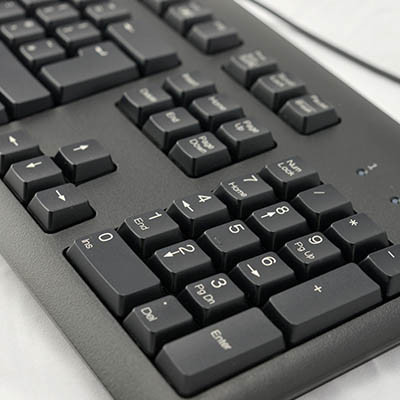
Once Mouse Keys is on, the numeric keypad becomes your mouse. The number keys move the cursor in their directions, 8 for up, 2 for down, 4 for left, 6 for right, and the corner numbers move diagonally. The 5 key acts as a click, and you can switch which button it presses using the other keypad keys. It is slower than a real mouse, but when your hardware quits at the worst moment, it keeps you working until you can swap in a replacement.
Small things like this are the difference between losing twenty minutes and losing none. Knowing your tools, and having someone who keeps them running, is what keeps a workday on track. That is part of what we do.
Book a call if you want your team's tech set up so small problems stay small.
Little fixes like this add up. Handling all of it, the updates, the security, the gear, is what our managed IT services do for Wichita businesses, so your team stays on the work.

© 2026 CybertronIT. All rights reserved.Privacy Policy · Sitemap
Comments