
CybertronIT Blog
Cybertron Blog
Cybertron has been serving the Wichita area since 1997, providing IT Support such as technical helpdesk support, computer support, and consulting to small and medium-sized businesses.

Moving from a Mac to a Windows PC is mostly familiar, but the details differ, and one of the first things people miss is how to deal with a frozen app. On a Mac, you reach for Command-Option-Escape to force quit. On Windows, the tool you want is the Task Manager, and it does far more than just close stuck programs. Here is how to use it.
0 Comments

How long has your main work computer been in service, and how long does it take to boot, log in, and open what you need? It is tempting to keep old hardware running because it still technically works. But "it still works" hides a real cost. A machine that is too old for the job quietly drains money in ways that add up to far more than a planned replacement. Here is how to know when it is time, and why upgrading on your schedule beats scrambling after a failure.

Most days, locking your computer at the end of the day is fine. But every so often, a full restart does more than you might think, clearing out problems, speeding things up, and even helping security. Here is why it matters and how to do it right.

When someone on your team asks for a faster laptop or a second monitor, you want to say yes, but there is usually a quiet voice asking whether it is money well spent. It is a fair question. Hardware is an investment, and the way to answer it is to look at what the old equipment is actually costing you. Here is how to tell whether an upgrade pays off.
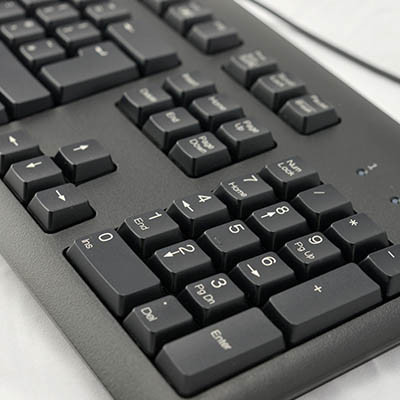
Your mouse dies in the middle of something important and there is no spare in the drawer. It happens. Windows has a built-in fix called Mouse Keys, an accessibility feature that lets you move the cursor with your numeric keypad. It is worth knowing before you need it. Here is how it works.

Few industries have changed as completely as the automobile over the last twenty-five years. The car went from a mostly mechanical machine to a connected, software-driven computer you happen to sit inside. It is a fun story on its own, and it also rhymes with what has happened to the technology running your business. Here are the shifts that got us here.

A computer that felt fast a few months ago can crawl today. The cause is usually simple. Your machine hangs onto data it does not need, and all that clutter weighs it down. Here are four fixes you can do yourself in a few minutes each, no IT ticket required.
1. Restart it for real
Be honest about how often you just lock the screen and walk away. Locking is not restarting. A full restart clears the temporary memory (RAM) and shuts down background programs quietly eating resources. Do it at least every few days. The path: Start, then Power, then Restart.
2. Turn off apps that launch at startup
Some programs start the moment you log in, and the more that fire at once, the slower everything gets. Switch off the ones you do not need on launch. Open Task Manager with Ctrl + Shift + Esc, go to the Startup apps tab, and disable anything non-critical with a high startup impact by right-clicking it. This does not delete the app. It just makes you open it on purpose. If you are not comfortable here, ask IT first.
3. Clear out storage
If Windows struggles to find or move files, the drive may be low on space. Open the Start button, type Storage Settings, and press Enter. Click Temporary files, then Remove files. That clears old installers, browser leftovers, and other data you no longer need.
4. Close the tab graveyard
Those fifty open browser tabs are not free. Each one is a small program running in the background. Close the tabs you are not actively using. If you will need one later, bookmark it with Ctrl + D and reopen it when you do.
Still slow?
An update running in the background can be the cause, or your machine may be overdue for one. Check Settings, then Windows Update, then Check for updates. If your business is in Wichita or Southcentral Kansas and the slowdowns never seem to stop, that is usually a sign of something deeper. Book a call and we will take a look.

© 2026 CybertronIT. All rights reserved.Privacy Policy · Sitemap