
CybertronIT Blog
Cybertron Blog
Cybertron has been serving the Wichita area since 1997, providing IT Support such as technical helpdesk support, computer support, and consulting to small and medium-sized businesses.


We have all heard it, maybe even rolled our eyes at it: have you tried turning it off and on again? It is the running gag of IT support. But under the joke is a real truth. Rebooting a device is genuinely the most effective first step for a surprising number of problems, and there is solid logic behind it. Here is why it works, and when it is telling you something more.
The Logic Behind the Reboot
While a device runs, it is juggling hundreds of small tasks in memory at once. Programs open and close, processes pile up, temporary files accumulate, and bits of software occasionally get stuck or conflict with each other. Over time these small snags add up and things start misbehaving. A restart clears all of that out. It dumps the cluttered memory, closes everything that was running, and lets the system start fresh with a clean slate. Most of the time, whatever was tangled up simply gets untangled.
More Than Just a Joke
The reason IT professionals ask first is not laziness. It is efficiency. A huge share of everyday glitches, the frozen app, the printer that will not respond, the connection that dropped, the program running slow, come from exactly the kind of temporary mess a reboot resolves. Starting there fixes the problem in two minutes a large percentage of the time, instead of spending an hour digging for a complicated cause that was never there.
The Business Case for the Restart
For a business, this is real time saved. Teaching your team to try a restart first means a lot of small issues get solved on the spot, without a support ticket and without anyone losing half a morning. It is the cheapest, fastest troubleshooting step there is, and it works often enough to be the right first move nearly every time.
When a Reboot Is Not Enough
Here is the important part. If you are rebooting the same machine over and over to keep it working, the restart has stopped being a fix and started being a symptom. A problem that keeps coming back points to something deeper: failing hardware, a software conflict, a misconfiguration, or even a security issue. That is the signal to stop rebooting and get someone to find the root cause, before the small recurring annoyance becomes a real failure.
Knowing the difference between a quick fix and a warning sign is a big part of what good IT support does. We handle the problems a reboot cannot, and we watch for the patterns that say something needs real attention. If the same issues keep coming back no matter how many times you restart, that is worth a look.
0 Comments
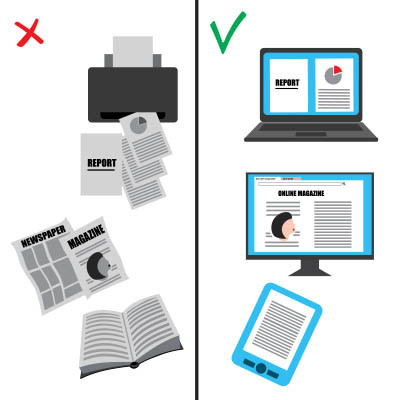
In nearly every office, the printer hums along in the background, so familiar that nobody questions it. Worth questioning, though. The average office worker goes through roughly 10,000 sheets of paper a year, a figure cited by the EPA and repeated across plenty of studies. That is real money, real clutter, and a real environmental cost. And much of it is waste: research has found nearly half of printed documents are tossed within a day. Cutting it down is not just about saving trees, it is about working smarter. Here are three ways to do it.
Move the Work Off Paper
Most of what gets printed never needed to be. Reviewing a document, sharing a draft, signing a form, collaborating on a file, all of it can happen on screen now, often better than on paper. Shared documents let several people work on the same file at once instead of printing copies for everyone. Digital signatures handle contracts without a single sheet. The less your workflow depends on paper, the faster and cheaper it gets, and the easier it is to find things later.
Build Better Printing Habits
Some printing is unavoidable, so make what remains intentional. Before anyone hits print, the question is simple: do I actually need this on paper? A lot of printing is reflex, not need. Encourage people to read on screen, print double-sided, and skip the cover pages and full-color graphics nobody asked for. Small habit changes across a whole team add up to a noticeably smaller stack and a smaller bill.
Make the Smart Choice the Default
The most reliable way to change behavior is to not rely on behavior. Set printers to double-sided and black-and-white by default, so the wasteful option takes extra effort instead of the other way around. Set up scanning that drops documents straight into your shared system so paper does not pile up in the first place. When the efficient choice is the automatic one, savings happen without anyone having to think about it.
Less Paper, Smoother Work
Cutting printing is one of those rare wins that saves money, reduces clutter, helps the environment, and makes your team faster all at once. It just takes the right setup and a few habits. The payoff shows up every month on the supply budget and every day in how easily people find what they need.
Helping businesses build smarter, faster workflows out of the tools they already have is a lot of what we do. If your office runs on more paper than it should and you want to fix that without disrupting how people work, we can help.

Think about how often you retype the same message in a given week. The status update, the new-client welcome, the answer to the question you get asked constantly. Each one feels like 30 seconds. Add them up across a year and across your team and it is real time, real mental energy, and a steady risk of typos and missed details every time you do it from scratch. Gmail has a built-in fix for this, and most people never turn it on.
What a Template Does
A template is a saved email you can drop into a new message with a couple of clicks, then tweak and send. Instead of rewriting your standard reply for the hundredth time, you load it, adjust the name or a detail, and you are done. The wording stays consistent, nothing important gets left out, and you get the time back.
How to Turn Templates On
Templates are off by default, so step one is enabling them. In Gmail, open Settings using the gear icon, then See all settings. Go to the Advanced tab, find Templates, and select Enable. Save your changes and Gmail reloads with the feature ready.
How to Create One
Click Compose and write the email exactly as you want it saved, subject line and all. Then click the three-dot menu in the bottom corner of the compose window, hover over Templates, choose Save draft as template, and Save as new template. Give it a clear name you will recognize later. Repeat for each message you find yourself sending again and again.
How to Use One
Next time you need that message, click Compose, open the same three-dot menu, hover Templates, and pick the one you want. It drops straight into the email. Change whatever needs changing for this specific person and hit send. What used to take a few minutes now takes a few seconds.
Where the Real Payoff Is
The advantage is not just speed. It is consistency. Your team sends the same accurate, on-brand message every time, instead of ten slightly different versions depending on who typed it and how rushed they were. Build templates for your most common replies and you have quietly standardized a chunk of your communication without a single meeting about it.
This is one small example of a bigger truth: the right setup of the tools you already pay for can hand your people hours back every week. That is a lot of what we do, finding the friction in how a business actually works and taking it out. If your team is losing time to busywork the technology could be handling, we can help with that.

Everybody knows cut, copy, and paste. Those are table stakes. The shortcuts below are the next tier, the ones that quietly save a few seconds hundreds of times a day until the time really adds up. None of them take more than a minute to learn. Here are eight worth committing to memory on Windows.

Forget the frantic hacker scenes from movies. Real cybercrime is not a smash-and-grab, it is a slow burn. Most attackers are not trying to make a scene. They want to get comfortable. An intruder can sit inside a network for weeks before anyone notices, quietly copying data, mapping your systems, and waiting for the most profitable moment to strike. Mandiant puts the global median at around eleven days, and plenty of intrusions run far longer. Catching that early comes down to awareness. Here are seven red flags that someone uninvited is already in your infrastructure.
The warning signs
Machines running hot for no reason. If your computer fans are pinned at full speed and the office sounds like a runway, processors may be cryptojacking, secretly mining cryptocurrency or attacking other businesses on your electricity and hardware.
Admin accounts nobody created. Access should be tightly controlled. New administrator profiles with generic names like sysadmin or IT_Support that your team never set up are a classic backdoor.
The mouse moving on its own. A cursor drifting across the screen or windows opening and closing by themselves is rarely a glitch. It is often an attacker testing remote control of the machine.
Emails already marked as read. If unread messages are opened before you get to them, someone may be reading your mail to study your writing style and send convincing phishing from your account.
Sudden, lasting network lag. A persistent drop in speed is rarely just the provider. It can be data being siphoned out, or ransomware getting into position to lock you out.
Software you never installed. Programs, browser extensions, and toolbars do not appear on their own. Anything you or your IT team did not authorize is likely malware logging keystrokes or redirecting traffic.
Logins and alerts that do not add up. Failed login spikes, sign-ins at odd hours, or security tools quietly disabled all point to someone probing from inside.
What to do if this sounds familiar
Do not panic, but do act. First, isolate the device, do not shut it down. Unplug the network cable or turn off Wi-Fi, but leave it powered on, because shutting down wipes the memory where forensic evidence lives. Next, check your sent folder to see whether your account has been used to spread the infection to clients or partners so you can warn them. Then bring in professionals. Once a breach has happened, cleanup is not a DIY job, you need a real diagnostic to confirm the threat is fully gone and has not left anything behind.
You should not have to wait for a disaster to know your systems are clean. Book a call and we will run a full security audit before a quiet threat turns into a loud one.

Does cybersecurity make your stomach drop? It is not most businesses specialty, but that does not make it any less important. Here is a simple one-page cheat sheet to make it easy for your team to do the right things. Print it, post it in the break room, or send it around as needed.
The golden rule of passwords
Two words: never reuse, never share. If you use your work password on your social accounts and a hacker cracks one of those, or it shows up in a breach, your accounts and the company are both exposed. Use the company-approved password manager, it is there to make strong, unique passwords the easy option. Unique means unique, no recycling, ever.
Use the S.T.O.P. method on every suspicious email
Your most powerful security tool is to slow down and think. Attackers count on click-happy habits, dressing scams up as shipping notices, invoices, and other everyday messages. Run them through S.T.O.P.
S, scrutinize the sender. Does the address match the name? Watch for tiny typos like micr0soft.com instead of microsoft.com.
T, think about the ask. Are they requesting passwords, money, or sensitive data? A legitimate sender almost never will.
O, observe the link. Hover before you click and check where it really goes, rather than trusting the text on the surface.
P, pause and verify. When anything feels off, confirm through a known channel, a quick call to a number you already have, before you act. Two minutes of thought can save the business from a ransomware attack.
Stick to company-approved devices and apps
Only use the devices and applications the company provides. Moving company data onto personal devices or unapproved apps multiplies the risk and breaks backups, encryption, and security. If you think a different tool would help you move faster, ask IT. We are happy to replace slow, dated tools with better ones, we just need to do it without putting data at risk.
We are here to help you do your job, safely. Book a call and we will help you build security habits your whole team can follow.

If your meetings feel like a lot of talking and not much getting done, you are in good company. A frequently cited Atlassian estimate puts the cost of unproductive meetings at around $37 billion a year in the US, and some of that is almost certainly yours. Here is how to make the time you spend in a room, or on a call, actually count.
Set the meeting up to succeed
Start with a purpose. The first qualification for holding a meeting is having a goal that justifies it. If you have one, get it on the calendar and build the agenda around it. If you do not, do not schedule it. Then keep the invite tight. The more people in the room, the easier it is for things to wander, so invite strictly on a need-to-know basis. When valid but off-topic points come up, and they will, acknowledge them, steer back to the agenda, and note them to revisit later.
Make the technology work for you
Nothing kills momentum like a presentation that will not load. Take a few minutes before you start to confirm the tech you are relying on actually works, so you have time to pivot instead of scrambling in front of everyone. Turn on Do Not Disturb so a personal notification does not pop up mid-screen-share. And with hybrid meetings now the norm, do not forget the people dialing in. Use the chat and call on remote attendees by name so they are part of the meeting, not spectators.
Keep it secure
Meetings often involve sensitive information, which is not something you want a random stranger listening in on. In the office an outsider at the table would get noticed. On a call it is easier to slip in, so keep the invite link private and use a lobby or waiting room to approve people before they join. That stops a leaked link from turning into an uninvited guest with access to your discussion.
End with action, not just goodbyes
Save the last few minutes to land the plane. Recap what you covered, assign each person their tasks, and spell out the action items so the most important points are the freshest in everyone mind. Then keep a record, whether an AI-generated transcript or notes in a shared doc, and send it around. That paper trail is what keeps the commitments from evaporating the moment people leave.
We help businesses around Wichita get more out of the tools their teams meet on every day. Book a call and we will make your meetings less of a time sink.

A strategic plan should not be a framed photo gathering dust on a shelf. It is a living document. Planning maps the route, but management is the part where you actually drive the car and keep the tank full. Here are five steps to move a big idea into real, daily action.
Audit where you actually are
Start with an honest SWOT. Strengths, what you do better than anyone and what assets you own. Weaknesses, where you are short on resources and what internal problems slow you down. Opportunities, the trends or customer needs you are positioned to grab. Threats, the outside risks like competitors, the economy, or shifting demand. No flattering yourself here. The plan is only as good as the honesty that goes into this step.
Pick the destination
Line your goals up against your mission and vision and use them as a compass. If a goal does not fit your values, scrap it. Then picture exactly where you want to be in five to ten years and work backward. The long view makes the near-term path a lot clearer than staring at the next quarter alone.
Write the roadmap
Build a concrete plan for the next three to five years. Pick three to five focus areas out of your SWOT. Break the big goals into bite-sized objectives for the next twelve months. Define the numbers you will track so you are measuring, not guessing. And put money behind it, because a priority with no funding or talent is just a wish.
Share the map
A plan only works if the team knows how to run it. Explain the why, since people work harder when they see how their daily work moves the company. Keep the goals in one shared tool so everyone can see progress in real time. And spell out what a successful year looks like for every department, so nobody is guessing what winning means.
Pivot when you need to
The market moves, so your plan has to flex. Check in every 90 days to see whether your tactics are still working and make small corrections. Once a year, step back and decide whether the plan needs a tune-up or a full refresh based on where things have actually gone.
Do these five and big ideas turn into daily action. The technology that supports the plan is our part, and we are glad to handle it. Book a call and we will make sure your tech keeps up with where you are headed.

A computer that felt fast a few months ago can crawl today. The cause is usually simple. Your machine hangs onto data it does not need, and all that clutter weighs it down. Here are four fixes you can do yourself in a few minutes each, no IT ticket required.
1. Restart it for real
Be honest about how often you just lock the screen and walk away. Locking is not restarting. A full restart clears the temporary memory (RAM) and shuts down background programs quietly eating resources. Do it at least every few days. The path: Start, then Power, then Restart.
2. Turn off apps that launch at startup
Some programs start the moment you log in, and the more that fire at once, the slower everything gets. Switch off the ones you do not need on launch. Open Task Manager with Ctrl + Shift + Esc, go to the Startup apps tab, and disable anything non-critical with a high startup impact by right-clicking it. This does not delete the app. It just makes you open it on purpose. If you are not comfortable here, ask IT first.
3. Clear out storage
If Windows struggles to find or move files, the drive may be low on space. Open the Start button, type Storage Settings, and press Enter. Click Temporary files, then Remove files. That clears old installers, browser leftovers, and other data you no longer need.
4. Close the tab graveyard
Those fifty open browser tabs are not free. Each one is a small program running in the background. Close the tabs you are not actively using. If you will need one later, bookmark it with Ctrl + D and reopen it when you do.
Still slow?
An update running in the background can be the cause, or your machine may be overdue for one. Check Settings, then Windows Update, then Check for updates. If your business is in Wichita or Southcentral Kansas and the slowdowns never seem to stop, that is usually a sign of something deeper. Book a call and we will take a look.

© 2026 CybertronIT. All rights reserved.Privacy Policy · Sitemap